01 / IMAGE10 REFS
Seedream 5.0 Pro
Premium Seedream generation with prompt-led creation and up to ten visual references.
 DREAMFORGEIMAGE · VIDEO · STUDIOIOS + IPADOSApp Store
 THE DREAMFORGE STUDIO LINEUP
Nine image models, five video engines, and focused controls that show exactly how much reference media each workflow can use.
01 / IMAGE GENERATION
Reference limits and output counts change with the model. DreamForge adjusts the workspace automatically so the controls always match the route you chose.
Premium Seedream generation with prompt-led creation and up to ten visual references.
Balanced high-resolution generation with deep reference support and large output batches.
Reference-rich Gemini image generation with model-specific sizes and four-output runs.
A fast Gemini image route designed for rich visual inputs and responsive iteration.
Fast text-to-image generation with large output batches and no reference requirement.
Prompt-led image generation routed through the prepared Ideogram V4 workflow.
Omni image creation with up to ten references and as many as nine outputs when references are active.
The largest image reference workspace in DreamForge, supporting up to sixteen visual inputs.
Text-to-image creation with its own aspect presets and support for multi-output generation.
Reference and output limits shown here reflect the current DreamForge workflows. Provider availability, pricing, safety behavior, and accepted media may change outside the app.
02 / VIDEO GENERATION
Video modes range from a single prompt to keyframes, source clips, rich reference sets, audio, and edit workflows. DreamForge reveals only the controls supported by the active model.
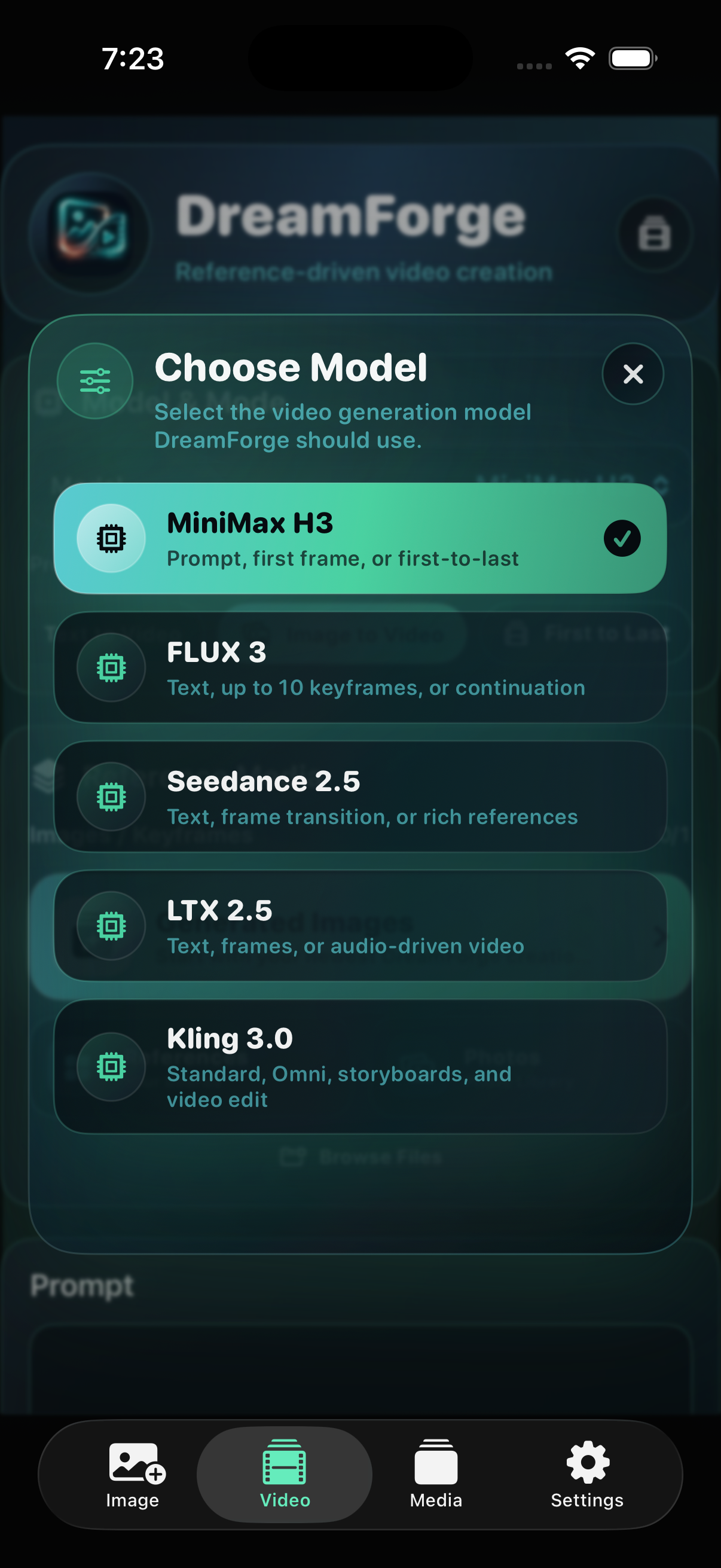
Mode availability and input limits update immediately after selection.
Direct prompt generation, one-image animation, or a first-to-last transition.
Text generation, multi-keyframe direction, or continuation from an existing clip.
Prompt, frame transitions, or the richest reference workflow in the Video Studio.
Text, still frames, first-to-last direction, or audio-driven video generation.
Standard video, first-to-last frames, Omni references, storyboards, and source-video editing.
03 / ASSIST, EDIT & ORGANIZE
DreamForge keeps the whole creative loop inside a focused mobile studio—from prompt direction and image editing to organized images, videos, and reference boards.
Add optional framing, angle, lens, lighting, motion, pace, and focus language without rewriting the original prompt.
Keep image editing inside the Image tab with dedicated source, reference, tool, and result controls.
Manage generated images and videos, then group reusable visual inputs into categories built around your process.
04 / THE ROUTE BEHIND THE BUTTON
DreamForge sends selected prompts and media to the ComfyUI server you configure. When a workflow uses an outside provider, its partner node uses your Comfy account and credits. Provider terms, pricing, availability, and safety rules remain in effect.
See privacy and provider routingPICK THE ENGINE. SET THE DIRECTION.
Start from a prompt, a still, a sequence, a clip, or a sound—and choose the route that fits what you are trying to make.
View on the App Store